How to Add a Signature in Google Docs (3 Methods, and When Each One Counts)
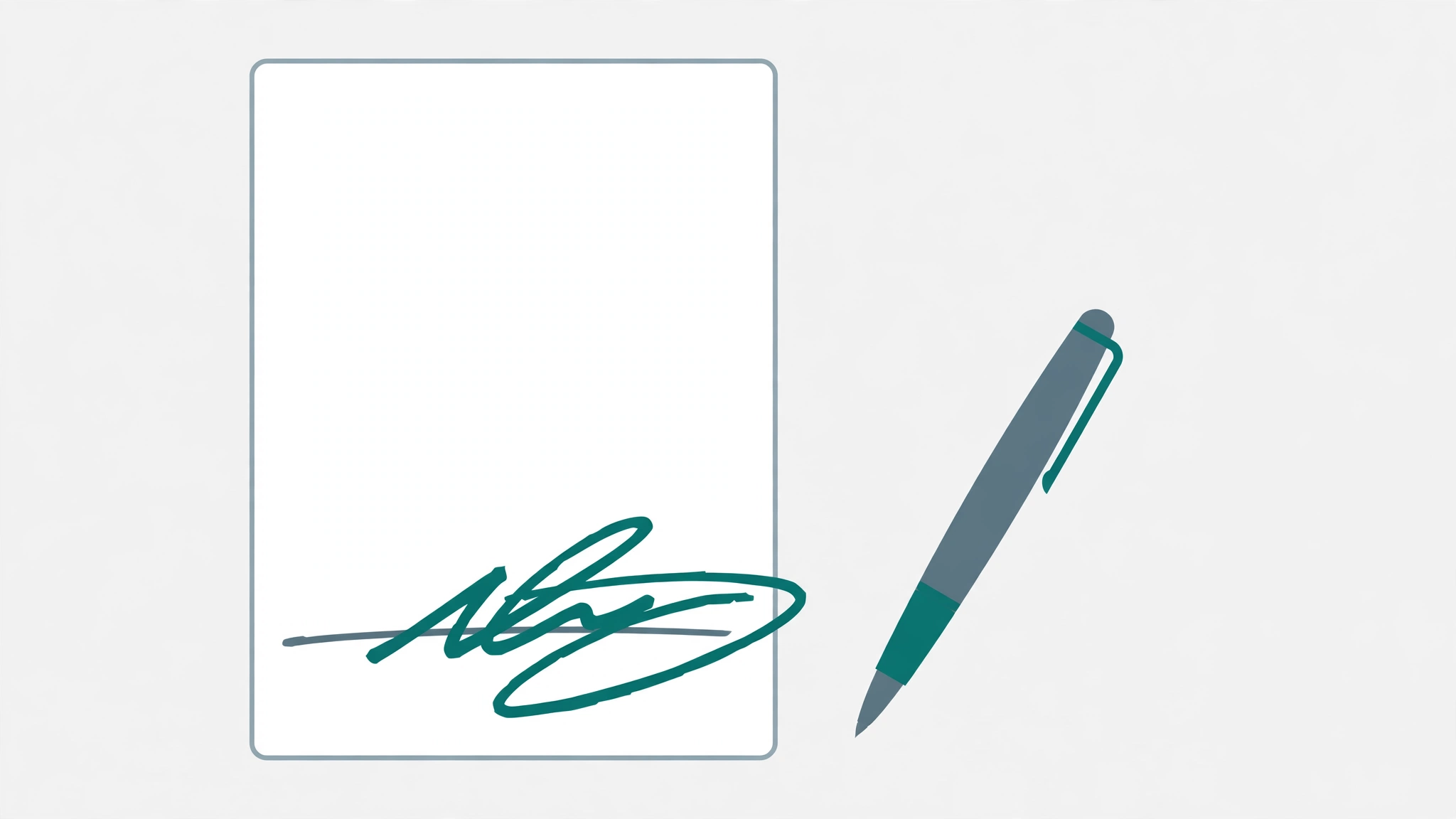
Google Docs has no Sign button. People go hunting through the menus for one, find nothing, and conclude they need to print the document, sign it with a pen, and scan it back in. You don’t. Docs has three workable routes to a signature — a built-in drawing tool, the image of your real signature, and a proper eSignature feature for Workspace accounts — and they are not interchangeable. Each one puts something different on the page, and only one of them records who signed and when.
This guide walks through all three, in the order most people need them, and is honest about what a signature made each way actually proves — because “there’s a squiggle on the page” and “this person signed this document” are very different claims.
Start With the Right Method
| Your situation | Use | Why |
|---|---|---|
| Signing your own letter, form, or approval, once | Draw it (Method 1) | Free in every Google account, nothing to prepare |
| You sign documents often, or it must look like your real signature | Insert a photo of it (Method 2) | Draw once on paper, reuse the image forever |
| Someone else has to sign, or the signature needs to hold up | eSignature (Method 3) | The only route with signer fields and an audit trail |
Method 1: Draw Your Signature with the Scribble Tool
The Drawing tool is the built-in answer, and the part everyone misses is that the freehand pen — Scribble — hides inside the Line menu rather than sitting on the toolbar.
- Click in the document where the signature should go — usually the empty line just above your typed name.
- Choose Insert → Drawing → + New. A blank drawing canvas opens over the document.
- On the drawing toolbar, click the small arrow next to the Line button and choose Scribble — it's the last item in that menu.
- Draw your signature with the mouse, trackpad, or a stylus. Press and drag for each stroke.
- Click Save and close. The signature appears in the document at your cursor.
- Click it once and drag a corner handle to size it down to something that looks like a signature rather than a mural.
Three things that trip people up:
- One Scribble selection per stroke. Every time you lift the mouse, that stroke is finished. A signature with a dotted i or a separate underline means choosing Scribble again before each new stroke — or the next drag starts a straight line.
- A mouse is the worst drawing tool you own. Trackpads are better, a touchscreen or stylus is better still. Expect two or three attempts; undo the bad strokes instead of starting over.
- You can reopen it later. Double-click the drawing in the document and the canvas comes back, strokes editable. A saved drawing is not set in stone.
Method 2: Insert a Photo of Your Actual Signature
If your signature has to be your signature — the same one the bank has — no mouse drawing will match it. Sign on paper once and reuse the picture.
- Sign your name on a plain white sheet with a dark pen, a few times. Pick the attempt that looks most like you.
- Photograph it straight-on in good, even light — no shadows across the paper, no angle.
- In the document, click where the signature belongs and choose Insert → Image → Upload from computer.
- Double-click the inserted image and use the Crop tool to cut it down to a tight rectangle around the ink.
- Resize by a corner handle and position it over the signature line.
Keep the cropped image file. It becomes your reusable signature: the same file drops into any future document in seconds, and it’s the only method that works in the Google Docs mobile app (tap + → Image), because the app has no Drawing tool at all.
Method 3: When Someone Else Has to Sign — eSignature
Methods 1 and 2 are for signing your own documents. When the signature you need is someone else’s — a client approving a proposal, a contractor accepting terms — use the built-in eSignature tool instead: Tools → eSignature.
The honest catch first: sending an eSignature request requires an eligible paid Google Workspace plan. A personal Gmail account can’t send requests — but anyone can sign one sent to them, since the recipient just follows the link in the request email.
What the extra machinery buys you over a pasted drawing:
- Fields, not pictures. You place signature, initials, and date fields on the document; the signer fills those fields rather than emailing you a scan.
- An audit trail. When everyone has signed, Google produces a completed copy with a record of who signed and when — the thing a drawn squiggle can never give you.
- A finished PDF. The signed result is a fixed document, not an editable Doc where the “signature” can still be dragged around by anyone with edit access.
If the document still needs back-and-forth before it’s ready to sign, keep the edits tracked with Suggesting mode and send the eSignature request only once the text is final — changing the document after signatures are collected means starting the signing over.
The Shortcut Nobody Should Rely On: Typing It
Yes, you can type your name in a handwriting-style font — Caveat is in the Docs font list under More fonts — and at a glance it reads as a signature. For an informal sign-off on an internal note, that’s harmless. But it fools no one who looks twice, every copy is character-identical (real signatures never are), and presenting a font as a signature on anything official is a misrepresentation, not a shortcut. Mentioned here so you recognize it, not so you use it.
What a Pasted Signature Can’t Prove
Both visual methods — drawing and photo — place a picture inside an editable file. That picture carries no identity verification and no timestamp anyone can check, and anyone with edit access to the document can select it, copy it into a different document, move it, or delete it. For letters, school forms, internal approvals, and the everyday “yes, I agree, here’s my name,” that’s entirely fine, and it’s what most people signing in Docs actually need.
For anything you’re signing because the other side will rely on it — contracts, agreements, financial forms — use Method 3 or a dedicated signing service, then share the completed PDF with view-only access so the record can’t quietly change afterwards.
Edge Cases Worth Knowing
- The signature lands mid-paragraph. A drawing is inserted inline at the cursor, like a very large character. Give it its own line — put the cursor on the empty line above your typed name before inserting, and it will sit where signatures belong.
- Scribble seems to be missing. It’s not a toolbar button; it’s the last entry inside the Line dropdown on the drawing toolbar. This one detail accounts for most “Google Docs can’t draw signatures” forum posts.
- Signing the same way, every time. Drawings can’t be saved into a reusable library inside Docs, but you can copy one (click it, Ctrl+C) and paste it into another open document intact. The photo from Method 2 is still the more durable master copy.
- The signature is for a document going out as PDF. Sign first, then export — File → Download → PDF — so the signature is baked into the file the recipient gets, rather than living in a Doc they might open in edit mode.
Frequently Asked Questions
Is a signature drawn in Google Docs legally binding?
It depends on the jurisdiction and the agreement, and this guide isn’t legal advice. The practical point: a drawn or pasted signature proves very little on its own, because nothing verifies who placed it there. Where electronic signatures are accepted, the records behind them — who signed, when, on which version — are what give them weight, which is why eSignature tools keep an audit trail and the drawing tool doesn’t. For anything consequential, use Method 3 or a dedicated service.
Can I add a signature in the Google Docs app on my phone?
You can insert a signature image (the + button → Image), but the Drawing tool and Scribble don’t exist in the Android or iOS apps. The reliable phone workflow is Method 2: keep a good photo of your signature on the device and insert it wherever it’s needed.
How do I reuse the same signature in future documents?
Save the cropped signature image from Method 2 somewhere permanent — Drive is the obvious place — and insert that same file every time. It guarantees the signature is identical across documents and avoids redrawing it with a mouse ever again.
Why does my Scribble signature look nothing like my real one?
Because you’re writing with your wrist locked to a mouse. A trackpad is a step up, a stylus or touchscreen is the real fix. Drawing the signature oversized and shrinking it afterwards also helps far more than people expect — most of the visible shakiness scales away.
Sources:
- How to Sign a Document in Google Docs — Solve Your Documents
- How to Add a Signature in Google Docs: 5 Ways — fynk