How to Schedule an Email in Gmail (Desktop, Mobile, and How to Cancel)
Advertisement
Scheduling an email in Gmail is a two-second action hiding next to the Send button, but three things routinely trip people up: they can’t find the option on mobile, they don’t realize the timezone is locked to where they scheduled it, or they need to edit a message that’s already queued. This guide covers every platform, every edit path, and the limits that matter when you schedule a lot.
The Quick Steps (Desktop)
- Click Compose and write your email as usual — recipient, subject, body, attachments.
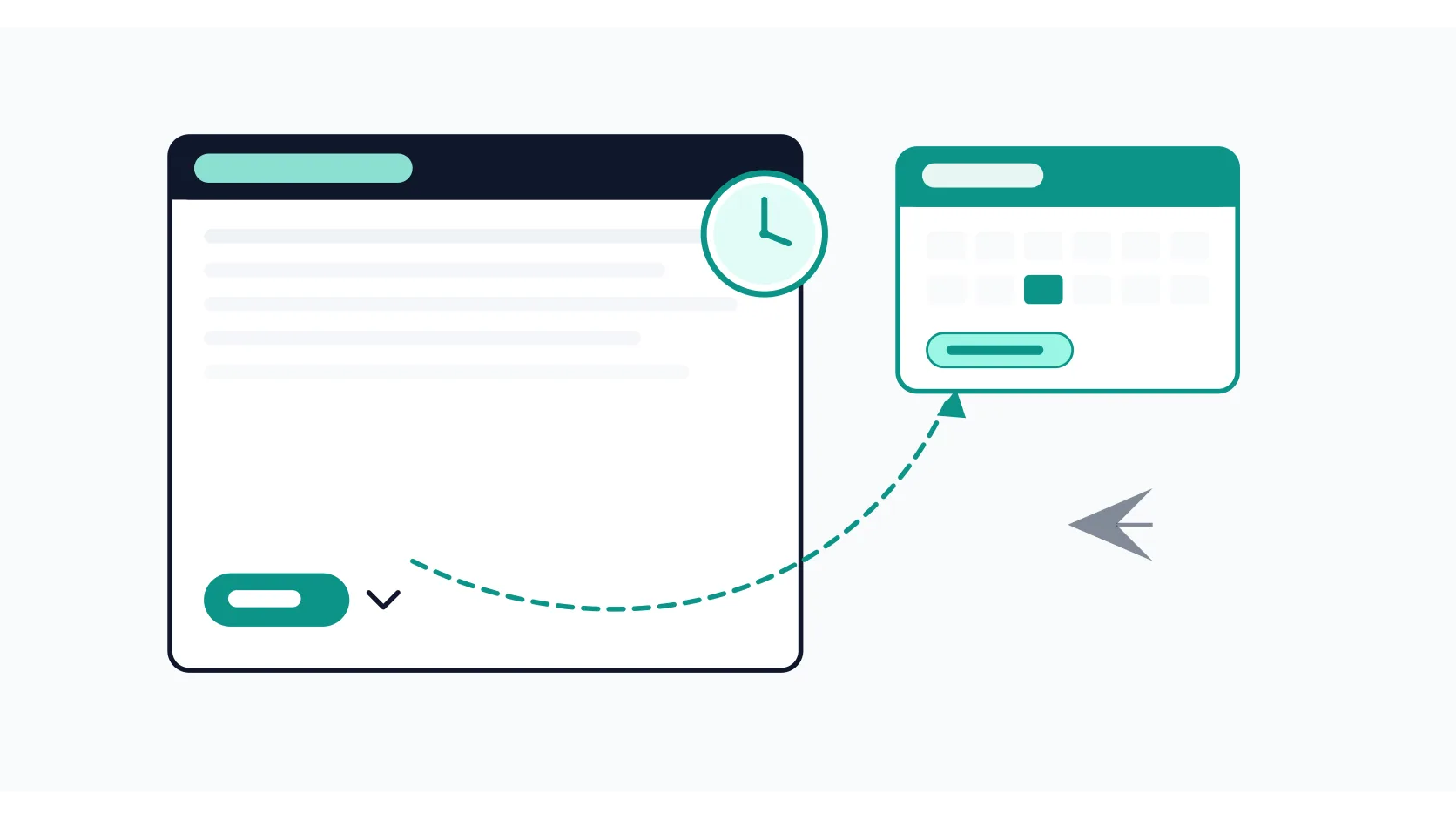
- Instead of clicking Send, click the down arrow immediately to its right.
- Choose Schedule send.
- Pick one of Gmail's suggested times (Tomorrow morning, Monday morning, etc.) or click Pick date & time for a custom slot.
- Confirm. The email disappears from your compose window and lands in the Scheduled folder in the left sidebar.
That’s it. Gmail’s servers handle the delivery — you can close the tab, shut down your laptop, go offline. The message sends at the scheduled time regardless of whether your device is on.
The Quick Steps (Android and iPhone)
- Tap Compose in the Gmail app and write your email.
- Tap the three-dot menu (⋮) in the top-right corner of the compose screen.
- Tap Schedule send.
- Choose a suggested time or tap Pick date & time to set your own.
The scheduled email lives under Menu → Scheduled in the app’s navigation drawer, same as on desktop.
Editing a Scheduled Email
You can’t open a scheduled email and just tweak it in place. Gmail requires you to cancel the schedule first, which reverts the message to a draft:
- Open the Scheduled folder in the left sidebar (or search in:scheduled if the folder isn't visible).
- Open the email you want to change.
- Click Cancel send in the top-right corner.
- The email reverts to a normal draft. Edit recipient, subject, body, or attachments as needed.
- When you're done, schedule it again — arrow next to Send → Schedule send → pick the new time.
Canceling a Scheduled Email
If you just want to pull the email entirely:
- Open Scheduled → open the email.
- Click Cancel send.
- The email becomes a draft. Click Discard to delete it, or leave it in Drafts for later.
There’s no confirmation dialog — Cancel send is instant. If you clicked it by accident, the message is still in Drafts, so nothing is lost unless you explicitly discard it.
Where Scheduled Emails Live
After you schedule, the email sits in a dedicated Scheduled label in the left sidebar. If you don’t see it (Gmail sometimes hides infrequently used labels), click More at the bottom of the label list, or type in:scheduled in the search bar.
Scheduled emails don’t appear in Drafts, Sent, or Outbox. They exist only under Scheduled until the moment they’re delivered, at which point they move to Sent.
Timezone: The Detail People Miss
Gmail reads the time you set in the timezone of the device you’re using when you schedule. If you schedule for 9:00 AM while in Jakarta, then fly to London before the send date, the email still goes at the equivalent of 9:00 AM Jakarta time — which is 2:00 AM London time.
Practical Use Cases
- Time-zone alignment. Draft at midnight, schedule for 9 AM the recipient’s time. The email lands at the top of their workday instead of buried under overnight spam.
- Batch sending. Write five follow-ups in one sitting, schedule each for the appropriate day. One sitting of writing, a week of outreach handled. Pair this with time-blocking in Google Calendar — block a “writing hour” Monday morning, draft the week’s emails, and let Gmail handle delivery on schedule.
- Self-reminders. Schedule an email to yourself with a checklist or deadline. It arrives like any other message, complete with a notification.
- Undo on steroids. Gmail’s Undo Send gives you 30 seconds. Scheduling for five minutes from now gives you a five-minute window to cancel if you spot a mistake.
Limits Worth Knowing
| Constraint | Detail |
|---|---|
| Maximum scheduled emails at once | 100 |
| Maximum scheduling horizon | ~49 years ahead |
| Delivery precision | Within a few minutes of the set time, not to the second |
| Recurring emails | Not supported natively |
| Edit without canceling first | Not possible — cancel → edit → reschedule |
| Bulk / mail-merge scheduling | Not supported; requires a third-party tool |
The 100-email cap is per account. If you hit it, Gmail blocks further scheduling until one sends or you cancel one. For most individual users this isn’t a realistic limit; for outreach campaigns it is, and that’s where dedicated tools take over.
Scheduling as Part of a Bigger Inbox System
Scheduling solves the “when” of email, but not the “how much.” If your Scheduled folder is growing alongside an already crowded inbox, the underlying problem is volume and organization, not timing. Our guide to organizing your Gmail inbox covers the label structure, filter setup, and one-time cleanup pass that make scheduling one more predictable piece rather than another source of clutter.
One habit worth adopting: review the Scheduled folder at the end of each week. Stale emails sitting there for days are usually ones you’ve quietly decided not to send. Cancel them, discard the drafts, and keep only what genuinely needs to go out.
Frequently Asked Questions
Does my computer need to be on for the email to send?
No. Scheduled emails live on Google’s servers. Once you confirm the schedule, delivery happens server-side regardless of your device state.
Can I schedule an email to repeat automatically?
Not with Gmail’s built-in feature. For recurring sends, you’d need a Google Workspace add-on or an automation layer like Google Apps Script. For one-off or occasional repeats, scheduling manually is simpler.
What happens if I exceed 100 scheduled emails?
Gmail refuses to schedule additional messages until the count drops below 100. You’ll see an error prompting you to wait or cancel existing ones.
Can I see exactly when a scheduled email will send?
Open the Scheduled folder and click the email — the scheduled date and time appear in the banner at the top. There’s no countdown, but the timestamp is precise.
I set up filters — will they apply to scheduled emails when they arrive in the recipient’s inbox?
Filters apply to incoming mail. If you schedule an email to yourself, your own filters will process it on arrival just like any other incoming message. The scheduling mechanism itself doesn’t interact with filters.
Can I schedule emails in Google Workspace (business accounts)?
Yes. Schedule send works identically in Workspace accounts. Admins can’t disable it per user; it’s available to everyone on the same terms as free Gmail.
Sources: