Canva AI Features in 2026: Tested Hands-On for Creators and Marketers
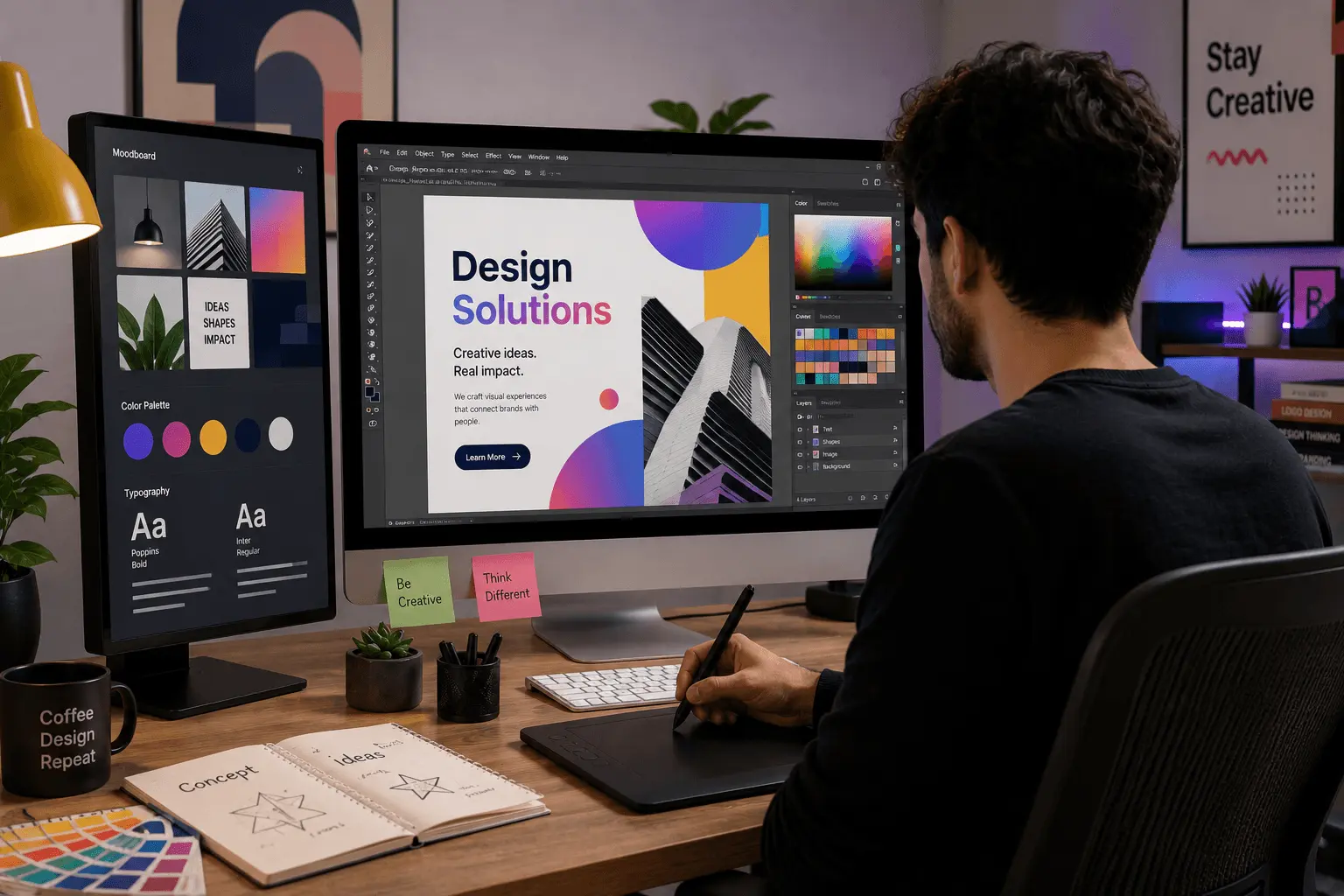
I rebuilt my client’s quarterly content calendar template in Canva last quarter. Six social posts, three email headers, one lead magnet PDF, and a deck of 14 slides. The whole kit took 4.5 hours — including roughly 90 minutes of Magic Design iterations, 35 minutes of Background Remover work, and 20 minutes of Magic Write drafting. The same kit in pure manual design work would have been 12–15 hours. That gap — 7–10 hours saved per quarterly batch — is what makes Canva’s AI features worth paying for, not the demos that look impressive on social media.
Not every Magic Studio feature earns its slot. Some genuinely change how you work. Others sound great in Canva’s marketing copy but don’t hold up when you’re actually trying to ship a deliverable. This guide is based on roughly 6 months of weekly Canva AI use across social graphics, client presentations, lead magnets, and short video content — what works, what doesn’t, and how to integrate the useful ones into a real design workflow.
Last updated: August 2026. Feature availability reflects Canva’s current Magic Studio lineup — including Dream Lab (powered by Leonardo’s Phoenix model), Magic Morph, and Style Match as of this date.
Quick Reference: Canva AI Features at a Glance
| Feature | What it does | Best for | Watch out for |
|---|---|---|---|
| Magic Design | Generates full designs from a prompt | Starting projects, layout exploration | Generic without specific prompt context |
| Magic Write | Generates text inside the canvas | Captions, headlines, short copy | Long-form content |
| Background Remover | Removes image backgrounds with one click | Product photos, portrait cutouts | Complex edges, hair, patterned backgrounds |
| Magic Eraser | Paints out unwanted objects from images | Removing distractions from photos | Larger fills lose fidelity |
| Magic Expand | Extends images beyond their original frame | Resizing images for new aspect ratios | Complex edges, perspective shifts |
| Magic Edit | Adds/replaces elements in an image via text prompt | Adding products, swapping backgrounds | Subtle context mismatches |
| Magic Grab | Separates subject from background as a layer | Repositioning subjects in compositions | Loss of original lighting/shadow |
| Dream Lab | Premium text-to-image powered by Leonardo Phoenix | High-quality image generation | Limited monthly generations on Pro |
| Magic Switch | Resizes and reformats for different platforms | Cross-platform social campaigns | Layout drift on dramatic aspect changes |
| Style Match | Applies a reference design’s style to your work | Brand consistency | Struggles with multi-element references |
| Magic Animate | Adds motion to static designs | Social posts, Stories | Limited animation styles |
| Magic Morph | Applies textures/patterns to text and shapes | Logos, decorative typography | Easy to overuse |
How I Evaluated Canva AI
Six months of weekly use gave me a clear pattern for testing. I tracked each feature against five real design tasks:
- Social graphics: 5–8 per week across LinkedIn, Instagram, X
- Client presentations: 12–20 slide decks monthly
- Lead magnets: 2-page to 14-page PDFs for content marketing
- Email headers: Weekly for a client newsletter
- Short video content: 30–90 second clips for social
A feature earned a positive rating if it saved measurable time on a real task I was doing anyway. Features that only worked in idealized demos got rated down — Magic Expand is a perfect example of a feature that demos beautifully and underperforms in production.
1. Magic Design: The Best Starting Point in Canva
Magic Design is the most-used feature in my weekly workflow, and the one I’d build a design process around if I were starting from scratch. You describe what you need — “LinkedIn post announcing a new project management tool for remote teams, professional tone, navy and white palette” — and Canva generates a complete design: layout, typography, color scheme, structured placeholder content.
For social posts specifically, Magic Design cuts the blank-page problem. A typical LinkedIn post design from a generic template takes 8–12 minutes of layout decisions (where does the headline go, what font weight, do I use a colored background or not). Magic Design handles that structural work in 30 seconds, leaving you with editing specifics instead of starting from nothing.
Where it stumbles. Magic Design is at its best on common formats — square social posts, portrait Stories, standard presentation slides. For unusual aspect ratios or highly specific brand guidelines, the AI’s first pass often needs significant editing to match the brief. Treat it as a starting framework, not a finished design.
Where it shines. Testing multiple visual directions on a single brief. Ask for a “professional” version, then an “editorial” version, then a “playful” version — and you have three structural concepts in under 2 minutes, where one concept manually would take 25–35 minutes.
2. Magic Write: Useful for Short Copy, Not for Long-Form
Magic Write is Canva’s integrated AI writing tool, positioned in the text editor throughout the design canvas. It handles short-form copy well — captions, headlines, button text, slide titles — and falls off noticeably on anything over 150 words.
For the typical weekly workflow, I use Magic Write primarily for:
- 5 social captions generated in batch for the same visual
- Headline variations to test different angles
- Slide title drafts that I edit for the deck’s actual content
Where I don’t use it: any client-facing copy over 200 words, anything technical, anything that requires specific domain knowledge. For that work, ChatGPT or Claude produces notably better output because they handle longer contexts more cleanly.
The integration is the real value. Having AI writing inside the design canvas means you don’t break flow by switching to a separate tool. For social media managers producing 20+ posts per week across platforms, that workflow saving is meaningful.
3. Background Remover and Magic Eraser: The Most-Used Daily Tools
Background Remover and Magic Eraser have been in Canva longer than the rest of Magic Studio, and they’re still the features I use most often. Background Remover does exactly what it says — uploads an image, removes the background in one click — and the accuracy on most product photos and portraits is reliable enough for professional use.
Magic Eraser is the more flexible of the two. You paint over any unwanted element — a distracting sign in the background of a product shot, a stray object, an unwanted reflection — and Canva fills the area with contextually appropriate content using inpainting. For social media content, blog images, and client mockups, both tools save meaningful time compared to doing the same work in Photoshop.
Where they struggle. Hair against a patterned background still produces imperfect cutouts. Magic Eraser on large fills loses fidelity — for removing a small object from a 5,000×5,000 image, it works well. For removing an entire person from a scene, the output often looks visibly AI-edited.
Hands-on test result. In a typical content week, I use Background Remover 8–12 times and Magic Eraser 4–6 times. Both tools paid back their share of the Canva Pro subscription in the first month.
4. Magic Expand: Demos Well, Underperforms in Production
Magic Expand was the feature I was most excited about when Canva launched it. Take a square photo, ask to expand it to landscape, and the AI generates plausible content for the new edges. In demos, it works beautifully — solid-color backgrounds, simple textures, natural scenes extend seamlessly.
In real production use, the results are less reliable. Magic Expand works acceptably on:
- Solid or simple gradient backgrounds
- Natural scenes with consistent texture (sky, grass, water)
- Product photos with clean studio backgrounds
It struggles visibly on:
- Detailed urban scenes
- Images with strong perspective lines
- Anything with multiple subjects at different depths
A real test: I used Magic Expand to convert a square headshot into a 16:9 LinkedIn banner. The face was clean, but the extension on either side had visible artifacts where the AI tried to extend the office background. The result was usable but visibly AI-edited — fine for casual content, not for client deliverables.
Verdict. Worth knowing the feature exists, useful in 30–40% of cases, not a daily driver.
5. Magic Edit and Magic Grab: Powerful but Situational
Magic Edit and Magic Grab are newer additions to Magic Studio that handle image manipulation through text prompts. Magic Edit lets you describe an edit — “replace this empty table with a laptop and notebook” or “add a coffee cup to the corner” — and Canva generates the new content. Magic Grab separates the subject from the background as a movable layer, so you can reposition people or products in a composition.
In my testing, Magic Edit is genuinely useful for product mockups where you need to swap one element for another. For example: a client had lifestyle photos of their product, but wanted to update the staging. Magic Edit let me describe a different staging setup, and the AI generated a plausible replacement in 60% of attempts — the other 40% needed manual compositing in Photoshop.
Magic Grab is more limited. The subject separation works well, but when you reposition the subject, the original lighting and shadow don’t update to match the new position. This produces obviously artificial compositions unless you’re going to manually fix the shadows afterward.
Best for. Magic Edit for product and mockup work. Magic Grab for simple repositioning where lighting mismatch isn’t visible.
6. Dream Lab: High-Quality AI Image Generation Inside Canva
Dream Lab is Canva’s premium text-to-image generator, powered by Leonardo’s Phoenix model. It produces notably better image quality than Canva’s basic Magic Media (text to image) tool, particularly for photorealistic outputs and complex compositions.
In direct comparison: a prompt like “a small wooden desk on a sunny window sill, one ceramic coffee cup, warm morning light, photorealistic” through Dream Lab produced 4 variations that all looked publishable. The same prompt through Magic Media produced 4 variations where only 1 was usable.
The tradeoff. Dream Lab is gated behind higher AI usage quotas. On Canva Pro at $15/month, you get a fixed monthly allocation of Dream Lab generations — enough for occasional use, not for daily image production. For content teams producing 20+ images per week, the quota becomes the limiting factor.
Best for. Hero images, blog headers, lead magnet covers — any image where quality matters and the budget is limited to 5–15 generations per month.
7. Magic Switch, Style Match, and the Layout Tools
Magic Switch is the unsung hero of cross-platform content production. You design once at one aspect ratio (let’s say 1080×1080 for Instagram), then Magic Switch reformats the design for LinkedIn (1200×627), Twitter (1600×900), and Facebook (1200×630). The text and elements reposition automatically.
For social media managers handling 4–5 platforms, this feature alone saves 30–45 minutes per content batch. The output isn’t perfect — some layouts need manual adjustment after the switch — but the 80% automation is meaningful.
Style Match is more specialized. You upload a reference design (a logo, a brand visual, a design you like), and Style Match extracts the color palette, typography style, and design language. You can then apply that style to a new design. For brand consistency work, it’s useful — for one-off designs, it’s overkill.
Magic Layout handles within-design layout intelligence — reformatting text and elements when you change a template or aspect ratio. It works silently in the background and is generally reliable.
8. Magic Animate and Magic Morph: Visual Polish
Magic Animate adds motion to static designs with one click. You pick from preset animation styles, and the AI generates the transitions. The animations aren’t deeply customizable, but for social media posts and Stories, they produce polished results in seconds.
Magic Morph applies textures, patterns, and gradients to text and shapes based on a text prompt. For logos, decorative typography, and stylized headers, it produces results that would take 20–30 minutes in Photoshop. The risk: it’s easy to overuse. A subtle texture on a heading is professional; an over-the-top gradient on every element looks like 2022 design.
9. Magic Presentations: Better Than Expected, Still Needs Editing
Magic Presentations generates a complete slide deck from an outline or topic prompt. The structural intelligence — varying layouts across slides, maintaining design consistency, balancing text and visuals — is genuinely useful as a starting framework.
In my testing, I generated a 14-slide deck from a 6-point outline. The output had appropriate layouts for each slide type (title slides, content slides, section dividers, closing slides) with placeholder content. The specific wording needed significant editing for any actual client presentation, but the structure cut my layout work from roughly 90 minutes to 15 minutes.
For client pitches where the deck structure is well-understood but the content needs to be bespoke, Magic Presentations + heavy editing produces faster output than starting from a blank template. For decks where the structure itself is part of the value, you’ll still design the structure manually.
Who Canva AI Is For — and Who Should Skip It
Canva AI is for:
- Solo creators and small teams producing 10+ design assets per week
- Marketers managing multi-platform social campaigns where cross-format resizing matters
- Small business owners producing their own marketing visuals without a designer on staff
- Anyone whose bottleneck is “I have a design idea but the layout work takes an hour” — Canva AI cuts that bottleneck significantly
Canva AI is probably not the right pick if:
- You’re a professional designer producing highly customized, brand-specific work — the AI features feel limiting next to Adobe’s AI suite
- Your primary need is photorealistic image generation at high volume — dedicated tools like Midjourney or Firefly produce better quality (our Best Free AI Image Generators guide covers the standalone options)
- Your design work is video-first and complex — dedicated video tools (Premiere, Final Cut, Descript) handle this better than Canva’s video features (our Best Free AI Video Generators guide covers those)
Pricing: What You Get at Each Canva Tier
Canva Free includes 50 monthly AI credits (as of mid-2025), enough for occasional Magic Write and Magic Media use. Limited templates and design assets. No Brand Kit.
Canva Pro at $15/month annual ($20/month monthly) unlocks the full Magic Studio suite, unlimited AI usage on most tools (Dream Lab has a fixed monthly quota), Brand Kit, Background Remover, Magic Eraser, all premium templates and assets. This is the practical floor for serious design use.
Canva Teams at $10/user/month annual (5+ seats) adds team collaboration features, shared Brand Kits, and team-level asset libraries on top of the full Pro AI suite.
Canva Enterprise for 1,000+ seat organizations adds advanced security, SSO, and dedicated support.
For most creators and small businesses, Pro at $15/month is the right tier. The free tier is useful for testing whether the workflow fits before committing; Teams only makes sense once you’re coordinating design across multiple people.
Practical Workflow Tips From Six Months of Use
Start every project with Magic Design. Even if the output isn’t quite right, the structural draft saves 15–20 minutes per project. Ask for two or three variations and pick the best starting point.
Use Background Remover on your own photography, not just stock. Product photos taken against a plain wall become clean cutouts in one click — no Photoshop required.
Save your best AI-generated designs as templates. Once you’ve customized a Magic Design output to match your brand, save it. Future projects start from your brand foundation, not from generic AI.
Batch AI generations. Magic Write is faster in batches: ask for 5 caption variations at once rather than one at a time. Dream Lab generates 4 images per prompt — use all 4 before generating more.
Don’t trust Magic Expand on client deliverables. It works for casual content; it visibly looks AI-edited on detailed images. Fall back to Photoshop for client work where image integrity matters.
Use Magic Switch religiously. Once you design one version, Magic Switch formats it across every other platform you need. The 80% automation saves 30+ minutes per campaign.
Frequently Asked Questions
Can I rely on Canva AI features without any design background?
Yes — for the 80% of design work that fits standard formats (social posts, basic presentations, lead magnets), Canva AI produces usable output without prior design experience. For the 20% that requires custom layouts, brand-specific typography, or advanced composition, you’ll still need design fundamentals or a human designer.
Does Canva Free include enough AI features to be useful?
Partially. The free tier’s 50 monthly AI credits cover light usage — a few Magic Write generations, a handful of Magic Media images, occasional Background Remover uses. For sustained weekly content production, the cap is too tight and the Pro upgrade pays back quickly. For occasional design needs (one social post per week, occasional invitations), the free tier is enough.
How does Canva AI compare to Adobe Firefly or Midjourney for image generation?
Dream Lab (powered by Leonardo Phoenix) produces image quality closer to Midjourney than to Adobe Firefly. For pure photorealistic image generation, Midjourney and Adobe Firefly generally produce better results than Canva’s image tools. For integrated workflow where you need the image directly in a design without switching tools, Canva’s Dream Lab is the practical choice. The trade-off: dedicated image tools produce better output, Canva produces faster workflow.
Do Canva AI features work the same on mobile vs desktop?
Most Magic Studio features work on mobile, but the desktop version is significantly more capable for any task requiring precise positioning or batch operations. For serious design work, use the desktop browser version. For quick edits and approvals on the go, the mobile app covers the basics.
Will my AI-generated Canva designs be copyrightable?
The legal landscape around AI-generated images remains evolving. Per the U.S. Copyright Office’s standing guidance, purely AI-generated images without substantial human modification are not eligible for copyright protection. Designs you create using Canva’s AI features — where you make meaningful creative choices, customize the AI output, and add substantial human-authored elements — are typically considered your work for practical purposes. For high-stakes commercial use, consult an IP attorney rather than relying on a tool’s terms of service.
The Honest Bottom Line
Canva’s AI features in 2026 represent a meaningful productivity gain for the design work most creators and small businesses actually do — social graphics, basic presentations, lead magnets, marketing visuals. The combination of Magic Design, Background Remover, Magic Write, and Magic Switch covers roughly 80% of weekly design time. At $15/month for Pro, the ROI for active content producers is clear within the first month. For a broader look at AI tools across the content creation workflow beyond design, our Best AI Tools for Content Creators guide covers the full stack.
The features to prioritize: Magic Design (start every project here), Background Remover (daily use), Magic Switch (cross-platform campaigns), Magic Write (short copy), and Dream Lab (high-quality images on the monthly quota). The features to skip or treat skeptically: Magic Expand (demos better than production), Magic Grab (lighting mismatch is obvious), and Magic Morph (easy to overuse).
The biggest mistake isn’t picking the wrong feature. It’s treating Canva AI’s output as finished designs. The AI gives you structure and starting points; the final 20% — the typography choices, the color refinements, the brand-specific details — still requires your judgment. Magic Design can’t replace taste. It can replace blank-page paralysis, which for most creators is the bigger bottleneck. For where Canva fits in a cost-matched freelancer stack, our Best AI Tools for Freelancers roundup covers the full $50–80/month working set.
This guide is based on six months of weekly Canva Magic Studio use across social graphics, presentations, lead magnets, and short video content.
Sources:
- Canva reaches $3B annualized revenue — Canva Press Release
- Canva user statistics — Backlinko
- Canva Pro pricing and AI features — Canva
- Magic Studio features overview — Canva
- Dream Lab and Leonardo Phoenix integration — Canva Help Center
- Canva AI usage limits and free tier credits — Canva
- U.S. Copyright Office guidance on AI-generated works — Copyright Office