How to Unsend an Email in Gmail (Desktop, Mobile, and After the Window Closes)
You can unsend an email in Gmail, but only for a few seconds after you press Send — and only if you act before that short window closes. Gmail’s Undo Send does not pull a delivered message back out of someone’s inbox. Instead, it holds your message for a few seconds before actually sending it, and during that hold you can cancel it. Once the hold ends, the message is delivered for real, and there is no way to take it back.
By default the window is just 5 seconds. You can extend it to 30 seconds in Settings, which is the single most useful change in this guide if you send email in a hurry.
The Quick Steps (Desktop)
- Send your email as usual — click Send at the bottom of the compose window.
- Immediately look at the bottom left of the screen. Gmail shows a "Message sent" notification with two options: Undo and View message.
- Click Undo right away. The notification only stays up for as long as your cancellation period lasts.
- The message reopens as a draft. Fix the recipients, the subject, the text, or the attachment, then click Send again — or discard the draft if you don't want to send it at all.
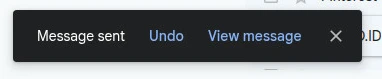
The “Message sent” notification appears at the bottom left of Gmail right after you send. Click Undo before it disappears.
If you clicked Undo in time, the recipient never receives the email and gets no notification that you canceled anything. The message simply never leaves Gmail.
The Quick Steps (Android and iPhone)
- Tap Send in the Gmail app after writing your message.
- A confirmation appears at the bottom of the screen — "Sent" with an Undo button next to it.
- Tap Undo immediately. As on desktop, the message reopens so you can edit it or discard it.
Give Yourself the Full 30 Seconds
If you have never changed this setting, you may have less time than you think. Changing it now won’t help with an email you already sent, but it gives you a bigger safety net for every email after this one. You can only change it on a computer:
- Open Gmail in a web browser and click the Settings gear icon at the top right.
- Click See all settings. The General tab opens.
- Scroll to Undo Send and open the Send cancellation period dropdown.
- Choose 5, 10, 20, or 30 seconds.
- Scroll to the bottom of the page and click Save Changes.
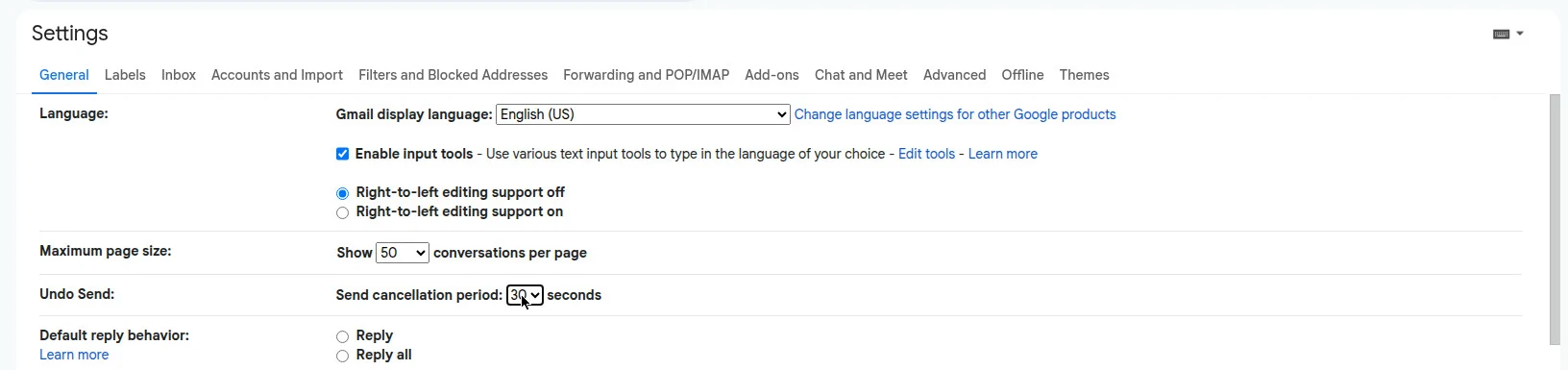
The Undo Send setting sits on the General tab of Gmail Settings. Set the Send cancellation period to 30 seconds, then save.
The only cost of 30 seconds is that every email you send arrives a few seconds later than it otherwise would — nobody on the receiving end notices that. If 30 seconds feels slow for quick back-and-forth replies, 20 seconds is a reasonable middle ground. There is no way to turn Undo Send off entirely; the cancellation period is the only choice you get, and the shortest option is 5 seconds.
What Undo Send Cannot Do
The most common misunderstanding about this feature is thinking of it as a recall button. It isn’t one, and the distinction matters most exactly when you need it:
| Situation | Can Undo Send help? |
|---|---|
| You click Undo within the window | Yes — the message is never delivered |
| The window has closed, even by one second | No — the message is delivered and cannot be taken back |
| The recipient has already opened the email | No — and note that during the window the message hasn’t been delivered yet, so nobody could have opened it |
| You sent from another email app, not Gmail | No Undo prompt appears — the feature only exists in Gmail on the web and in the Gmail app |
| You deleted the sent email from your Sent folder | No — that only deletes your copy; the recipient’s copy stays in their inbox |
| You sent to a colleague inside your company | You can’t recall it yourself, but a Google Workspace admin may be able to delete it from internal mailboxes with the security investigation tool |
Deleting a sent message from your own Sent folder is worth calling out specifically, because it feels like it should work. It doesn’t. Your Sent folder holds your copy; the recipient’s inbox holds theirs. Removing yours changes nothing on their side.
What to Do When the Window Has Already Closed
Once the message is delivered, the goal shifts from undoing it to limiting what happens next. What you do depends on what went wrong:
- Wrong recipient, small group. Email the recipients directly, explain briefly, and ask them to delete the message. Uncomfortable, but it works well with one person or a small group of colleagues.
- Wrong recipient inside your company. Contact your Workspace admin as soon as you can, with the subject line, the recipients, and the time you sent it. Admins can search for the message with the security investigation tool and delete it from your organization’s Gmail mailboxes. This only works for recipients inside your organization — a copy sent to an outside address stays on that recipient’s server.
- A password, API key, or account code was in the email. Don’t rely on anyone promising to forget it. Revoke and replace the credential immediately, then send the corrected information through a safe channel.
- A client’s personal data was attached. Tell whoever handles privacy at your company the same day, even if nothing obvious has gone wrong yet.
- A typo, a missing attachment, or the wrong version. Send a short follow-up with the correction and the right file. One line of correction and the fixed attachment is enough — a long apology email draws more attention to the mistake than the mistake itself.
Then resend what you actually meant to send. If the original went to the wrong person, send the corrected version to the right one and move on.
Give Yourself More Than 30 Seconds Next Time
Thirty seconds is a short safety net. For emails where a mistake would be expensive — a proposal, a contract, a message to a client, anything sent in anger — use Schedule send instead of Send. Scheduling for five minutes from now gives you a five-minute window to cancel, edit, or discard the message, and the scheduled email sits in your Scheduled folder until then. It is the same idea as Undo Send, with a window you choose yourself.
Two habits make the combination hard to beat:
- Schedule first, send second. For anything important, schedule it five minutes out, reread it once with fresh eyes, and let it go. If you spot a problem, cancel the schedule and the message reverts to a draft.
- Check the To field before the Send button. Most unsend emergencies are wrong-recipient emails, not typos. Autocomplete fills in the first matching name fast, and the first match is not always the person you meant. A two-second glance at the recipients prevents the whole situation — and pairs well with keeping your inbox organized, which our guide to organizing your Gmail inbox covers in full.
One more place people get caught: filters that auto-forward or auto-label outgoing mail don’t change anything about Undo Send, and neither do they rescue a message that already went out. They act on mail as it arrives, not on mail you already sent.
Frequently Asked Questions
Can I unsend an email in Gmail after an hour?
No. Gmail only lets you undo a sent email for up to 30 seconds, depending on your settings. After that the message is delivered and cannot be taken back, whether or not the recipient has opened it.
Will the recipient know I unsent an email?
No. Undo Send stops the message before it is delivered, so the recipient never receives the email and gets no notification that you canceled it.
Can I unsend an email from the Gmail app?
Yes, on both Android and iPhone: tap Undo in the confirmation at the bottom of the screen right after sending. The window on mobile is short — roughly 5 to 10 seconds — so tap it immediately. The 30-second setting can only be changed on the Gmail website.
Does Undo Send work in Google Workspace (business accounts)?
Yes. Workspace accounts have the same Undo Send feature as personal Gmail, with the same 30-second maximum. Business users don’t get a recall button either, but a Workspace admin can delete a message from internal mailboxes using the security investigation tool.
Can I delete a sent email so the other person can’t read it?
No. Deleting a sent email from your account only deletes your copy. The recipient can still read their copy unless they delete it themselves.
I sent the email from Apple Mail / Outlook — can I still undo it?
No. The Undo prompt only appears when you send from Gmail on the web or in the Gmail app. Messages sent through a third-party email client don’t get a cancellation window.
Sources:
- Send or unsend Gmail messages — Gmail Help
- How to unsend an email in Gmail and increase your undo send time — Google Blog
- How to unsend an email in Gmail — Proton